> For the complete documentation index, see [llms.txt](https://manual.firstresonance.io/llms.txt). Markdown versions of documentation pages are available by appending `.md` to page URLs; this page is available as [Markdown](https://manual.firstresonance.io/plans-and-autoplan/generate-new-demand.md).
# Generate new demand
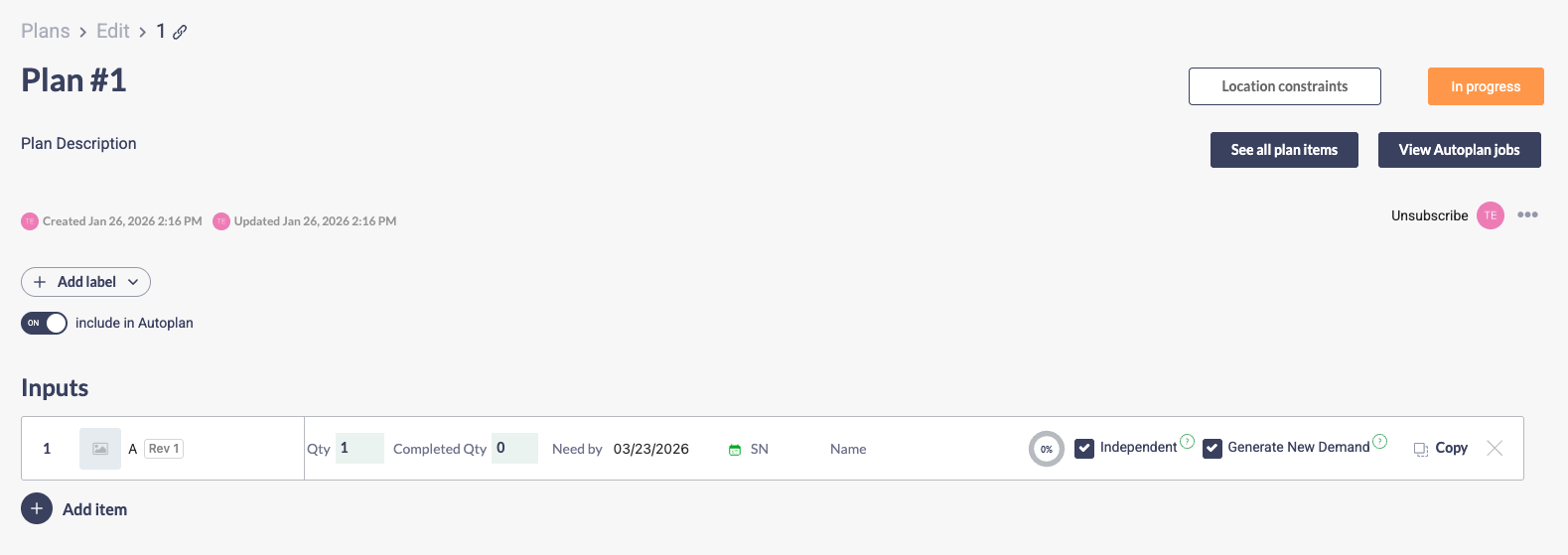
Toggle to ignore existing inventory.
The Generate New Demand option on plan inputs allows you to control whether Autoplan should ignore existing supply for a top-level plan input item and always create new planned items for it. This is useful when a quality issue is found with a top-level assembly that must be rebuilt—ensuring the defective unit is not allocated to the plan while still utilizing any valid sub-component inventory already on hand.
### Overview
There is a Generate New Demand flag on plan inputs. This will always be turned off by default. When on, Autoplan will not consider existing inventory for the plan input item itself, but will continue to allocate existing inventory for all mBOM sub-components.
**When Generate New Demand is checked (enabled), Autoplan will:**
* Ignore existing inventory for the plan input item only
* Always create new planned items for the full demand quantity of that plan input
* Show gross demand for the top-level part regardless of what's available
* Continue to allocate existing sub-component inventory throughout the BOM hierarchy
**When Generate New Demand is unchecked (default), Autoplan will:**
* Allocate demand against existing supply (inventory, runs, PO lines) when available at all BOM levels
* Only create new planned items when existing supply is insufficient
* Show net demand (demand minus available supply)
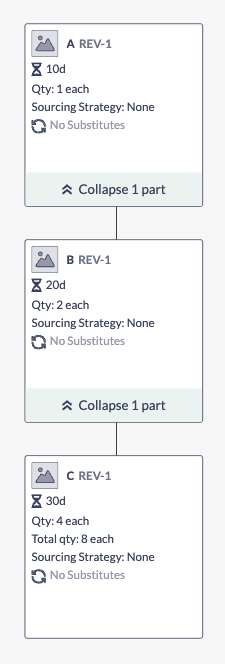
The mBOM for the above part (part A) looks like this:
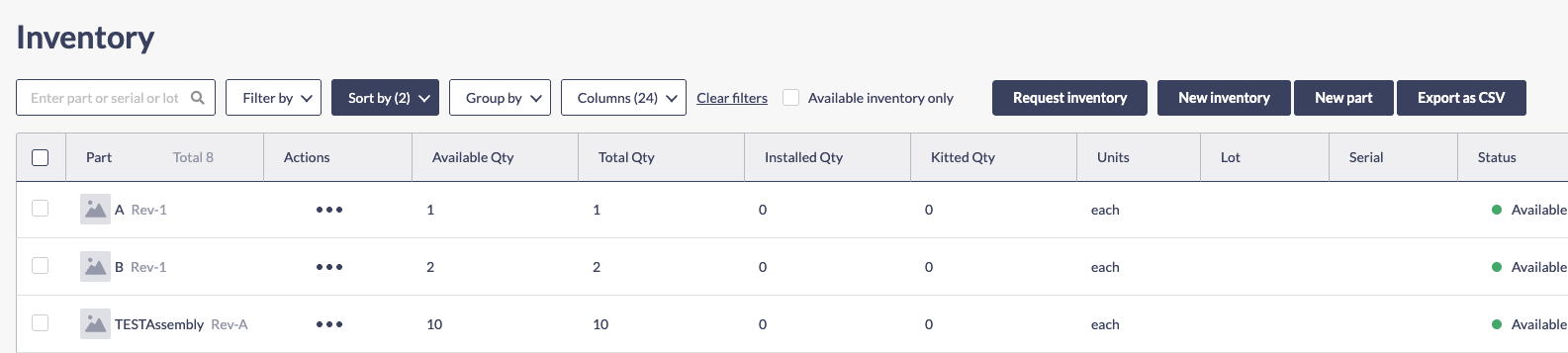
There is some inventory available for Part A and B:
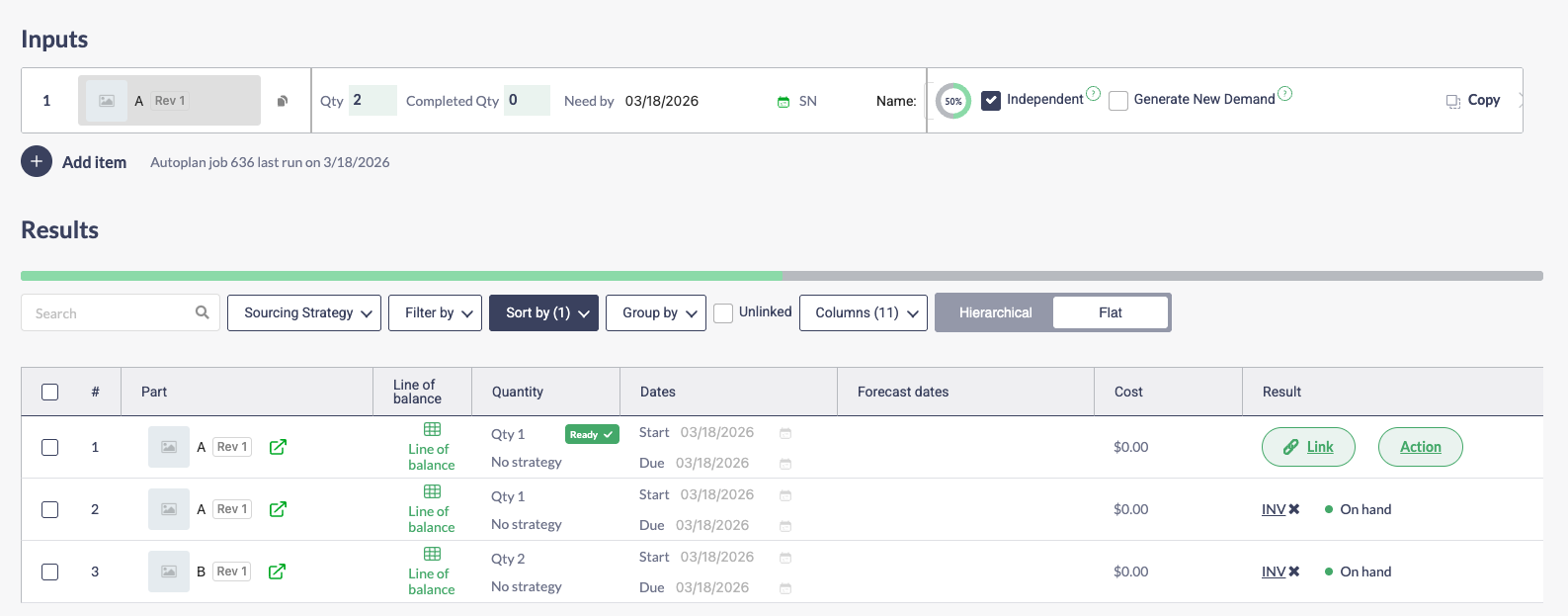
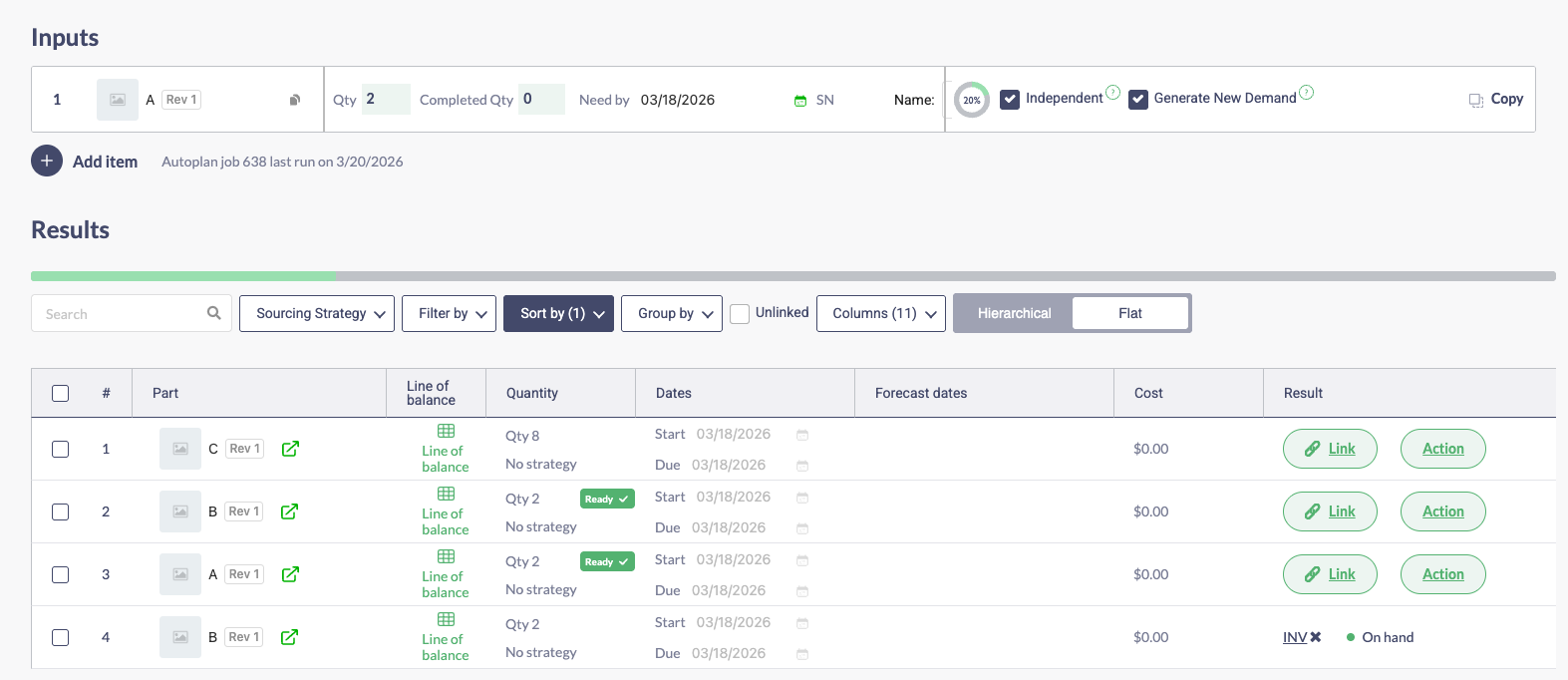
If we run Autoplan with Generate New Demand **unchecked** for Part A (quantity of 2), we would get results for Part A and Part B, with Part B indicating that there is inventory on hand to fulfill this plan. Note also that Part A would reflect a quantity of 1 is needed in the plan as there is already 1 in inventory (for a total of 2).
If we were to run Autoplan with Generate New Demand **checked** for Part A, we would see that Part A's existing inventory is not allocated to the plan. However, Part B's inventory **is still considered** and allocated as available supply.
#### Plan Input–Level Inventory Exclusion
The `Generate New Demand` flag applies **only to the plan input item itself**, not to child parts in the BOM. This means:
1. If you check `Generate New Demand` on a plan input for a parent part, Autoplan will exclude existing inventory for that top-level part only.
2. Child demands created from the BOM will **not** inherit `Generate New Demand` behavior.
3. Child parts will continue to have their existing supply allocated normally.
This targeted behavior ensures that a defective or otherwise unusable top-level assembly is not allocated to the plan, while all valid flight-spare sub-components remain available for the rebuild.
#### Mixed Behavior in the Same Plan
Different plan inputs within the same plan can have different `Generate New Demand` settings. This allows you to:
* Force new production for specific top-level assemblies (Generate New Demand: checked)
* Use existing inventory for other parts (Generate New Demand: unchecked)
**Example:**
* Plan Input 1: Part A (Generate New Demand: checked) → Creates new planned item; sub-component inventory still allocated
* Plan Input 2: Part B (Generate New Demand: unchecked) → Uses existing inventory if available
***
### Examples
#### Example 1: Simple Gross Demand at the Plan Input Level
**Setup:**
* Part: Widget
* Inventory: 15 units available
* Plan Input: 10 units needed
**With Generate New Demand checked:**
* Result: New planned item created for 10 units
* Widget inventory: 15 units remain unused (not allocated to this plan)
**With Generate New Demand unchecked:**
* Result: 10 units allocated from inventory
* Inventory: 5 units remaining
* No new planned item created
#### Example 2: Multi-Level BOM
**Setup:**
* Parent: Power Box (Generate New Demand: checked)
* Child: PCBA (quantity: 2 per power box)
* Grandchild: Fastener (quantity: 10 per PCBA)
* Inventory: 1 defective power box, 3 PCBAs, 40 fasteners available
* Plan Input: 1 power box needed
**Result:**
* Power Box: 1 new planned item created (defective unit's inventory ignored)
* PCBA: 2 needed total; 2 allocated from the 3 in inventory (sub-component inventory still used)
* Fastener: Remaining fastener demand calculated after PCBA allocation, with 40 fasteners still considered available
#### Example 3: Mixed Settings
**Setup:**
* Plan Input 1: Power Box (Generate New Demand: checked, quantity: 5)
* Plan Input 2: Propeller (Generate New Demand: unchecked, quantity: 5)
* Inventory: 3 power boxes, 8 propellers available
**Result:**
* Power Box: 5 new planned items created (ignores 3 in inventory for the top-level part; sub-component inventory still allocated)
* Propeller: 5 units allocated from existing inventory
#### Example 4: Real-World Quality Issue
**Setup:**
* A power box overheated during TVAC testing and must be rebuilt.
* Plan Input: Power Box (Generate New Demand: checked, quantity: 5)
* Inventory: Defective power box unit present; flight-spare PCBAs, harnesses, and fasteners also in stock
**Result:**
* The defective power box unit is **not** allocated to the plan
* All valid flight-spare sub-components (PCBAs, harnesses, fasteners) in inventory **are** considered and allocated, reducing the new planned items needed at the sub-component level
---
# Agent Instructions
This documentation is published with GitBook. GitBook is the documentation platform designed so that both humans and AI agents can read, navigate, and reason over technical content effectively. Learn more at gitbook.com.
## Querying This Documentation
If you need additional information that is not directly available in this page, you can query the documentation by asking a question.
Perform an HTTP GET request on the following URL with the `ask` and `goal` query parameters:
```
GET https://manual.firstresonance.io/plans-and-autoplan/generate-new-demand.md?ask=&goal=
```
`ask` is the immediate question: it should be specific, self-contained, and written in natural language.
`goal` is what the user is ultimately trying to achieve, the reason they need the answer. Sharing it helps GitBook give you a better, more relevant answer. A goal is most helpful when it describes the outcome the user wants rather than restating the question. For example, with `ask=how do I create an API token`, a goal like `automate deployments from our CI pipeline` lets GitBook tailor the answer to that use case.
The response will contain a direct answer to the question and relevant excerpts and sources from the documentation.
Use this mechanism when the answer is not explicitly present in the current page, you need clarification or additional context, or you want to retrieve related documentation sections.