> For the complete documentation index, see [llms.txt](https://manual.firstresonance.io/llms.txt). Markdown versions of documentation pages are available by appending `.md` to page URLs; this page is available as [Markdown](https://manual.firstresonance.io/features/ion-importers/inventory/update.md).
# Update
### How to Use the Inventory Update Importer
#### Overview
The Import Inventory (update existing) tool lets you bulk update existing inventory items via CSV. It processes up to 1,000 records and generates a downloadable CSV report with results.
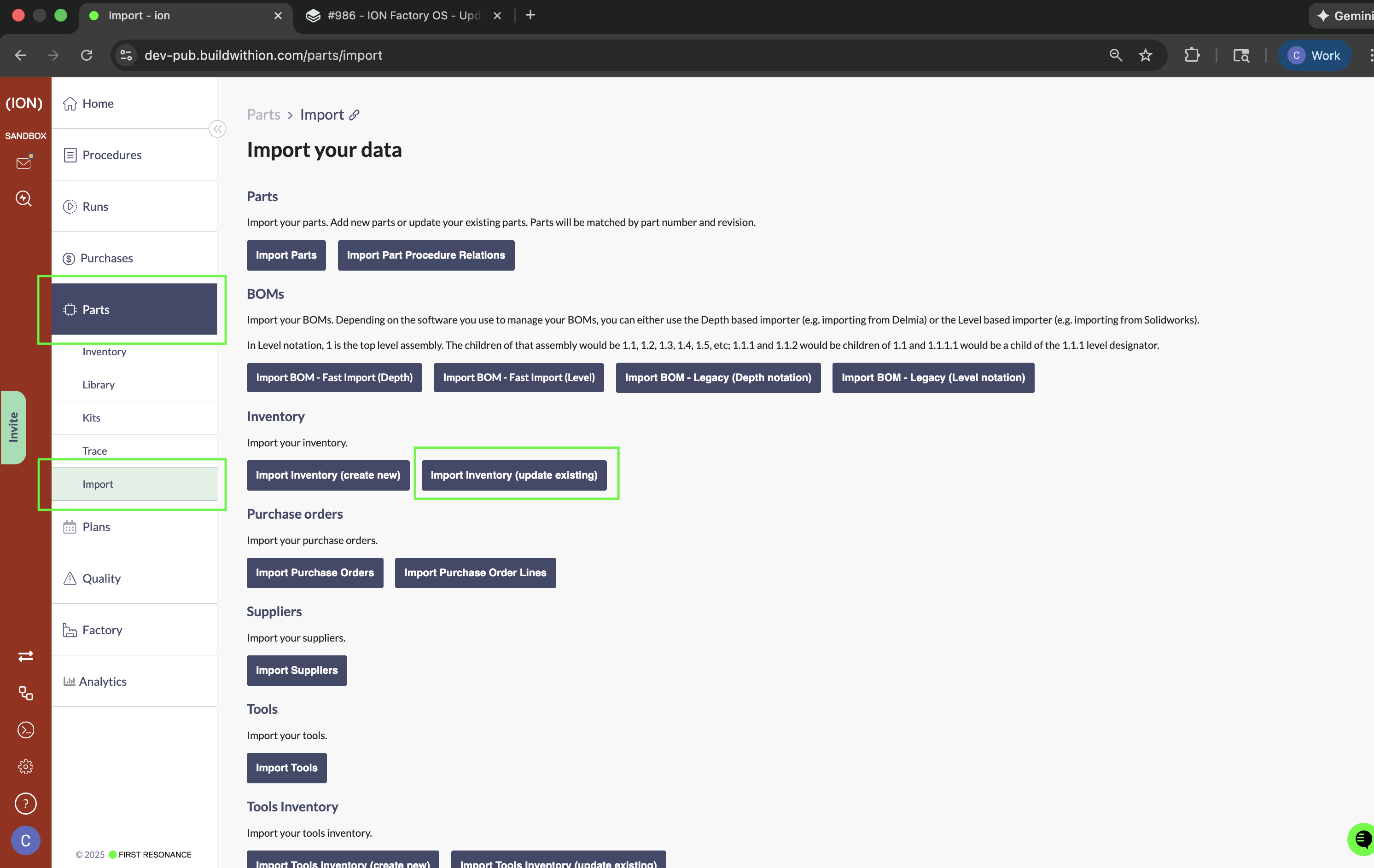
It can be found by navigating to the following page (Parts -> Import -> Import Inventory (update existing):
#### Step-by-Step Instructions
**1. Prepare Your CSV File**
Create a file with these columns (all optional except as noted):
Required (at least one):
* Id — Inventory item ID (most specific; recommended)
* OR Part Number + some combination of Revision, Serial Number, Lot Number *(Not recommended - see* [*Known Issues*](/features/ion-importers/inventory/update.md#known-issues)*)*
Optional fields:
* Revision
* Serial Number
* Lot Number
* Quantity
* Quantity Scrapped
* Unit
* Location
* Supplier
* Cost
* Custom attributes — Any custom fields configured for inventory (save for custom attributes of type File Attachment)
**2. Upload and Validate**
1. Click "Import Inventory (update existing)"
2. Upload your CSV file
3. The importer validates each row as you type:
* Checks that the inventory item exists
* Validates that locations, suppliers, and units exist (if provided)
* Ensures quantity scrapped ≤ quantity
* Shows errors/warnings in real time
**3. Review Validation Errors**
Common errors:
* "No inventory found to update for this record" — Item doesn't exist or lookup fields don't match
* "There are no locations with this name" — Location doesn't exist; create it first
* "There are no suppliers with this name" — Supplier doesn't exist; create it first
* "There are no units with this type" — Unit type doesn't exist; create it first
**4. Submit the Import**
1. Fix any validation errors
2. Click through the importer workflow
3. Processing:
* Records are processed sequentially (one at a time)
* Large imports may take up to 8-10 minutes
* Only one import can run at a time
**5. Review Results**
After completion:
* A success message shows how many records were updated
* A CSV file is automatically downloaded with results:
* Success cases: Shows updated inventory IDs
* Failed cases: Shows inventory IDs and error messages
* Review the CSV to identify any failures (NOTE: in the case of some failures the inventory may have in fact updated - check the specific inventory in ION to check whether it updated prior to re-importing it)
#### Important Notes
* Partial updates: Only include columns you want to update
* Custom attributes: Custom fields are supported and will be updated if provided
* In the case of some failures the inventory may have in fact updated - check the specific inventory in ION to check whether it updated prior to re-importing it
* File size limit: Maximum 1,000 rows per import
* On occasion you may see an error toast pop up in the top lefthand corner during the update. These errors do not block execution of the update - the import will continue, and you will receive a CSV download at the end with all of the errors encountered during upload, as well as the associated part inventory ids.
* If you chose to include a column in the Excel file for upload, it's simplest to have a value in every cell, and have no empty cells (even if the value is not being changed from what it was before)
* If the column type is a string (e.g. location, supplier, lot number etc), and a cell in the column is empty or blank, nothing will update in ION, even though some of those values (such as location) can actually be set to 'null' in ION.
* If the column type is a number (like cost, quantity, quantity scrapped), the importer will interpret an empty cell as being a zero value and will set the value to zero in ION.
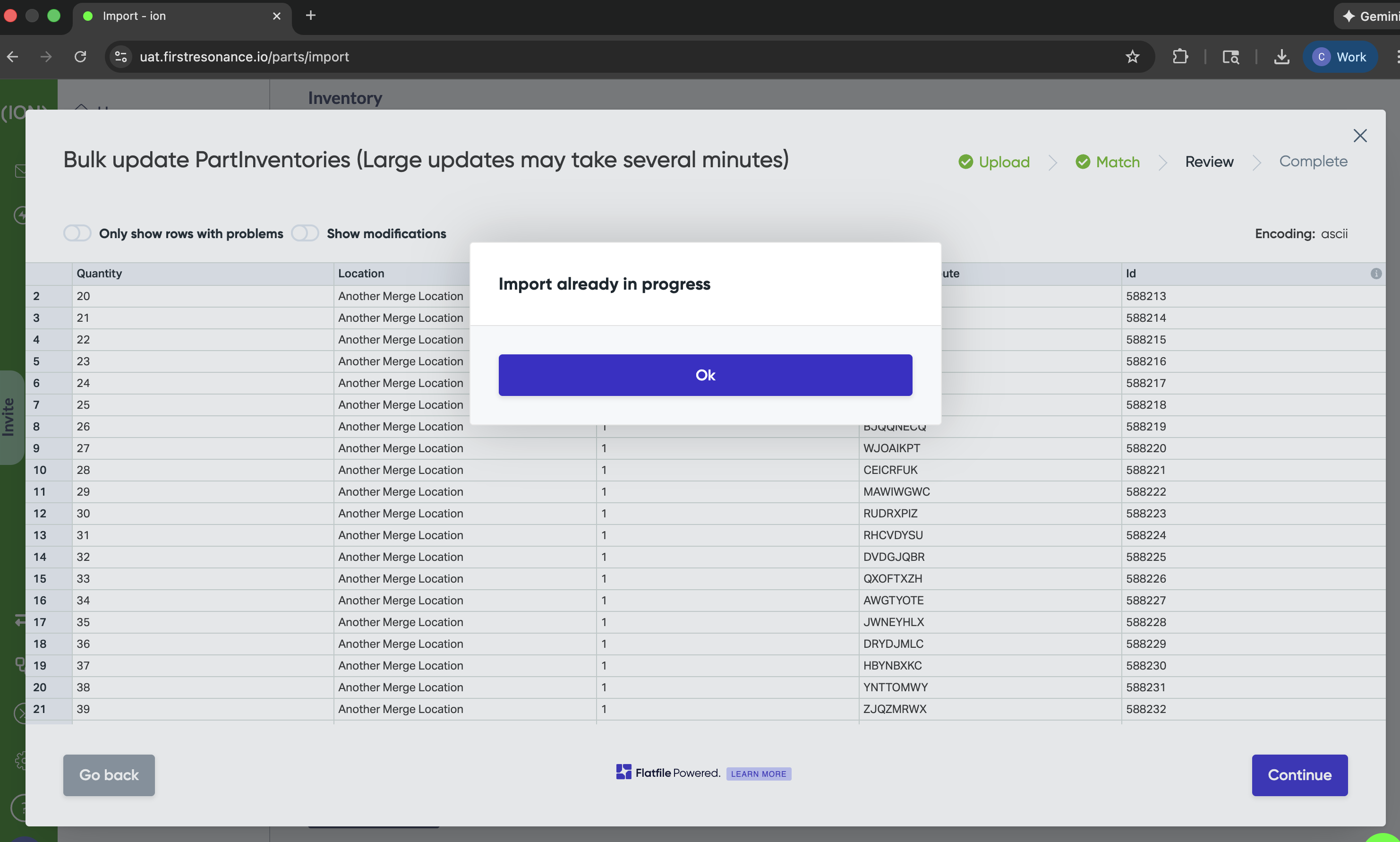
* Concurrent imports: Only one import can run at a time; if another is in progress, you'll see "Import already in progress" (NOTE: this should only be encountered rarely)
* Only run bulk updates from a single tab
NOTE: If you see the 'Import already in progress' display on a large upload, do not click away or re-import. The import is running in the background. When it completes, you'll see the UI with how many records were updated, as well as the CSV export to your downloads.
#### Known Issues
* Even though it looks as if the Part Number and Revision on an inventory can be updated through the importer, in reality they cannot - they are used exclusively to search for a part inventory in lieu of ID
* Updating boolean custom attributes may not behave as expected
* Updating datetime custom attributes in the importer only allows for a DD/MM/YYYY or DD/MM/YY format, and the timezone will be in UTC - not local
* The importer will let you update a part inventory found by Part Number + some combination of Revision, Serial Number, Lot Number (not by ID), even if multiple inventories exist. It will only update one of them, however. *For this reason it is recommended that this method of updating part inventories not be used.*
* (For gov-cloud customers) This importer makes use of a third party library called FlatFile. Table headers are sent to FlatFile's servers. Ensure no export controlled data is on headers.
---
# Agent Instructions
This documentation is published with GitBook. GitBook is the documentation platform designed so that both humans and AI agents can read, navigate, and reason over technical content effectively. Learn more at gitbook.com.
## Querying This Documentation
If you need additional information that is not directly available in this page, you can query the documentation by asking a question.
Perform an HTTP GET request on the following URL with the `ask` and `goal` query parameters:
```
GET https://manual.firstresonance.io/features/ion-importers/inventory/update.md?ask=&goal=
```
`ask` is the immediate question: it should be specific, self-contained, and written in natural language.
`goal` is what the user is ultimately trying to achieve, the reason they need the answer. Sharing it helps GitBook give you a better, more relevant answer. A goal is most helpful when it describes the outcome the user wants rather than restating the question. For example, with `ask=how do I create an API token`, a goal like `automate deployments from our CI pipeline` lets GitBook tailor the answer to that use case.
The response will contain a direct answer to the question and relevant excerpts and sources from the documentation.
Use this mechanism when the answer is not explicitly present in the current page, you need clarification or additional context, or you want to retrieve related documentation sections.